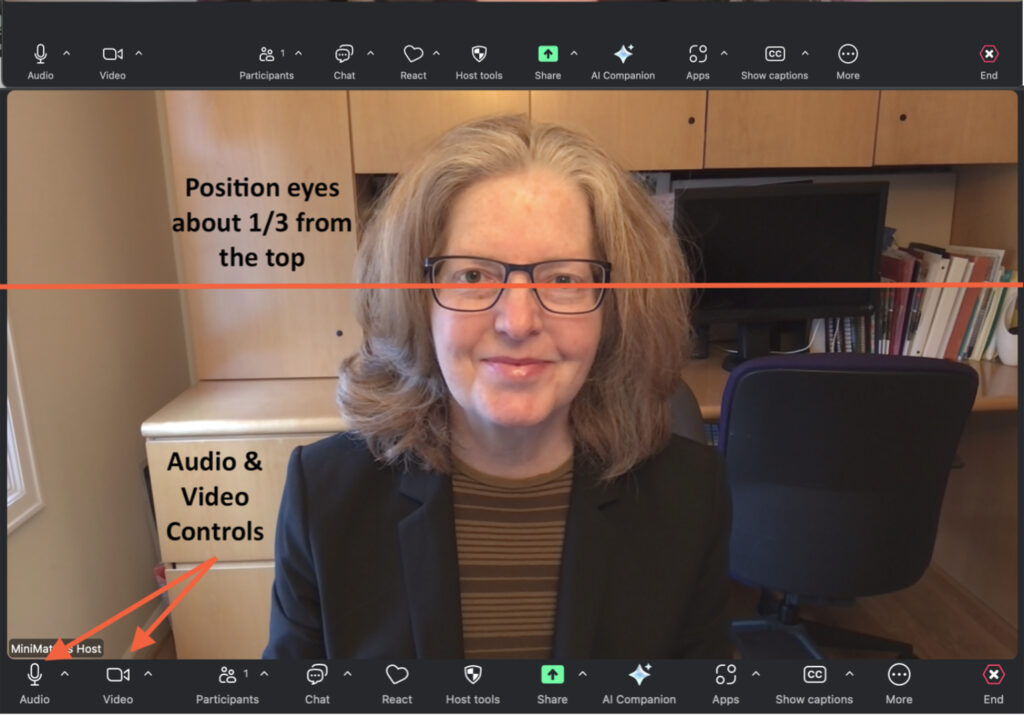
2. Be sure the camera lens is clean.
You can clean the lens with water or eyeglass cleaner and a soft cloth.
3. Look into your camera’s lens when you speak.
If you feel you need the “real person” feedback during the session, reposition the Zoom window so you’re seeing another person’s face right near your camera lens.
4. Sit on a fixed chair.
Sit on a stationary chair, rather than a swivel chair, to reduce unwanted movements and fidgeting.
5. Use Zoom Settings adjustments.
In Zoom, under “Video,” and then the “Video & effects settings” dropdown, there are options under the Appearance tab to improve how you look, such as “Touch up my appearance,” “Adjust for low light,” “Portrait lighting,” and “Auto-framing.” Experiment with these Zoom settings.
6. Consider your background.
Under “Video,” select “Virtual backgrounds.” From there, you can select from two options, or add more:
- None. If you choose this option, sit in front of an area that is calm and free of distraction. Keep the area behind you clean and without other people passing by or making noises.
- Blur. In our professional opinion, this option rarely looks good for recordings. The outlined edges of the person are often jagged and uneven. A better choice may be to select Video settings > “Appearance” > “Portrait Lighting.” With this option, the background becomes only slightly blurred and there’s no pixelation problem on the edges of the person.
- Add Your Own Background. This can be a nice choice for branding purposes. We would encourage you, though, to keep the background simple, without a lot of text or graphics, which can be distracting or may not be in focus.
7. Record in High Definition (HD).
Under “Video” > “Video,” be sure to select HD under the Camera option.
8. Make sure that your face is well lit.
It can help to have a light or window facing you. Conversely, having a bright light or window behind you can make your face appear dark. Experiment with your seating and camera position to see what looks good. You can make lights brighter by bringing them closer to you and softer by placing them further from you.
9. Try different types of lights.

Incandescent lights will result in a more orange/yellow color, and fluorescent or cooler light will have a bluer quality. LED lights range in colors from soft yellows to bright whites. Daylight also makes for nice lighting, but can vary a lot, even during your recording time.
10. Check your eye glasses.
If you wear glasses, you might get a reflection on your lenses from your computer screen. To reduce this glare, place a light off to the side of your screen, or slightly tip the top of your eyeglass frames toward the computer screen.
14. Choose a good outfit color for Zoom.
 Wear colors that look good on camera in Zoom, such as solid colors that complement your skin tone. Some great options are often jewel tones or darker solid colors such as those shown here.
15. Avoid white, black, small stripes, tiny patterns, and herringbone.
These patterns can create a distracting moiré effect of blurry or wavy lines. Avoid these patterns on ties, shirts, blouses, and blazers.
16. Makeup can help brighten your face on camera or reduce shiny spots.
Look in the mirror. If your face looks shiny (particularly on your nose, forehead, and cheekbones), you can blot your skin with a tissue. A neutral color facial powder can also eliminate some of the shine.
17. Keep jewelry simple.
Avoid wearing anything that jingles, such as larger earrings or noisy bracelets.
18. Select the best webcam available.
If you’re using an external webcam, look for one with at least Full HD 1080p Resolution and 30 fps Frame rate. The Resolution will capture a higher-quality image and the Frame Rate will capture smoother movements. You might also look for a camera with a built-in microphone. Note that you will need to select this microphone in the Zoom settings under “Audio” > “Microphone.”