 Just as photo software can eliminate a background on a photo, now AI is making it possible to remove a background from video, as well. Background removal tools open lots of possibilities for video production.
In this article we cover:
1.) What is AI video background removal and why is background removal useful?
2.) What’s an example of AI video background removal?
3.) What are the benefits of using AI video background removal for video production?
4.) How do you remove a background with AI?
5.) Are there free online AI video background removal tools or apps?
6.) Do you need to disclose AI video background removal on YouTube, Meta, LinkedIn, or other platforms?
7.) What are other considerations in using AI video background removal?
1. What is AI video background removal and why is background removal useful?
You may have heard of greenscreens, virtual backgrounds, or even the word “rotoscoping.” What they all do is to cut out a person or object from its background and then allow it to be placed on a new background. This allows you to control or change the look of the video, infuse your branding, clean up messy backgrounds, or add text to the videos. Here’s an example:
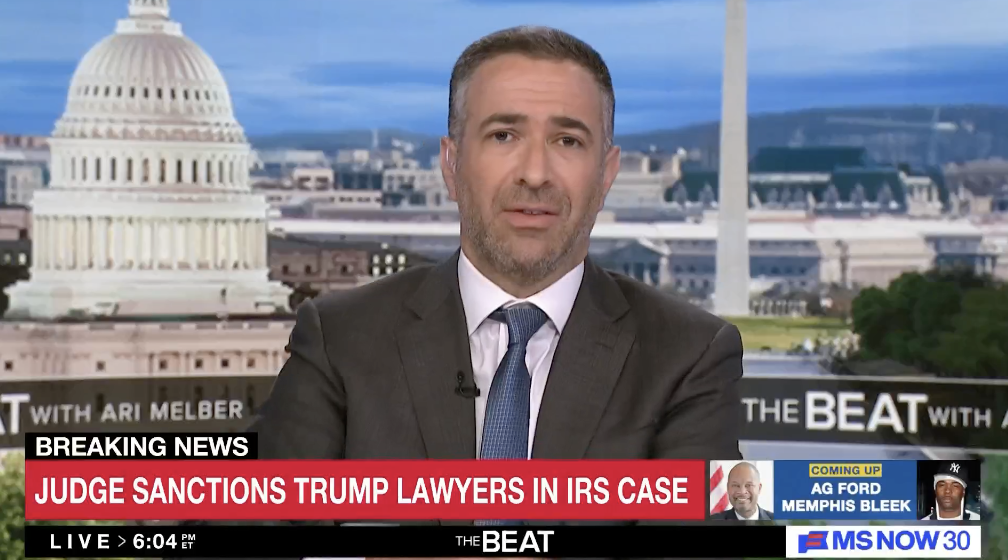
You’ve probably noticed, too, that there’s a lot of variability in how well this is done and how professional it looks. At one extreme, on Zoom, Teams, or Webex, you often see messy, jagged edges on the outline of a person. At the other extreme, on broadcast TV, you may not even notice that the newscaster isn’t actually sitting in front of a window with a perfect view of the Capitol or Washington Monument.
2. What’s an example of AI video background removal?
Below is a video that MiniMatters produced for the American Diabetes Association. In it, we were able to take a virtual recording of a healthcare professional. Then we used the AI tools in our video editing software to separate her from the background on which we recorded her. Then we placed the “cutout” video of her on a new background featuring the organization’s branding and key instructional points.

3. What are the benefits of using AI video background removal for video production?
There are plenty of reasons you may wish to remove the background from a video, including:
- to be able to place the speaker on a new background that is branded to an organization;
- to be able to combine the speaker with instructional text on the screen;
- to create a unified look when stringing multiple speakers together, each of whom was recorded with a different background;
- to eliminate a messy or distracting background;
- to blur or add special effects to a background;
- to more easily color-correct the speaker by isolating them from the background.
Any one of these reasons can be a compelling reason to use an AI video background remover.
4. How do you remove a background with AI?
Record the person well
The first step is to have a recording of the person you wish to isolate from the background. (We’re writing this, assuming you have a particular speaker or person you’re isolating. The same techniques would apply to animals or objects.) The quality of that recording will have a direct effect on how your finished video with a new background will look. So start with these recording tips to achieve the clearest video of the person set on a new background:
- Make sure there is color contrast between the person you’re recording and the background (including what they’re wearing and their hair color). Furthermore, recording or filming the person on a solid background also helps the AI software separate the person from the background more easily. This contrast is what allows the AI to distinguish and then separate the person from the background.
- If possible, record the person on a static (still) background. Moving objects in the background will make it hard for the video editing software to isolate the background and remove it.
- Record the person in the highest resolution possible. This evens out the outlines/edges of the person and will result in a smoother look.
- To the extent possible, limit flyaway hairs. At this point, most AI video software isn’t refined enough to work around fine hairs or small details. So, to avoid this problem, try to make sure the person has neatly brushed hair. Similarly, small hoop earrings can also be problematic, so it’s best just to have the person remove the earrings or wear larger hoops or smaller earrings.
Import the footage into video editing software and use AI tools to isolate the person/subject you want to retain and separate it from the background
Professional video editors have new and rapidly improving tools to use this background removal technique, thanks to AI, opening doors to useful ways of using these techniques. Specifically, previously, an editor would sometimes have to go frame-by-frame on a video and painstakingly ensure that the speaker/image was cut out, or “masked,” from its background. Now, AI features in video editing software allow more efficient extrapolation of image data, and video editors can more quickly isolate a person or object.
For the techies out there, here are explanations for how you can use the AI features to accomplish background removal and other masking effects with Adobe Premiere and Final Cut Pro. In Adobe Premiere, you can use the Object Mask feature or through Next-Gen Rotobrush in Adobe After Effects. Similarly, Final Cut’s Magnetic Mask allows you to isolate a moving object from its background and refine the parts you’ve selected. In addition, Version 12.3 of Final Cut Pro has also introduced an automatic Scene Removal Mask and an Auto Mask effect that automatically detect an object and mask it, allowing for isolating the object, color correcting it, or applying other filters. These features work best on Apple Silicon Macs (with M1, M2, M3, or M4 chips). They still can work on earlier chips, but it takes a good deal of computer processing power (and, therefore, production time), and the software can be a little glitchy. Still, now it’s a reasonable approach to attempt to use these editing features, at least for shorter videos.
5. Are there free online AI video background removal tools or other apps?
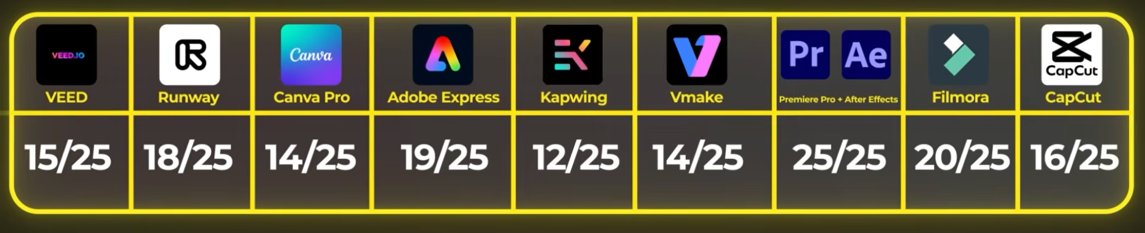
There are currently limited ways to access free online video background removers. We have found that this video explores various tools and offers a good comparison. It finds that the easiest and most robust free option is Adobe Express, which offers a free 30-day trial, though the length of your video clip is limited to 90 seconds. The other options have paid plans, some of which allow you to test video clips for free, but not export the final video with the background removed without paying.
Here’s a summary of what the Thomas Creates comparison found, with a maximum score of 25. For example, he scored VEED at 15 of a maximum of 25, while Adobe Premiere and Adobe After Effects received his top score of 25. Here’s what he concluded, meaning that Adobe Premier and After Effects offer the best solution with a high score of 25 out of 25, with Fimora as the next-best option:
The paid online video background removers vary in:
- price;
- length of the video clip from which you can remove the background;
- sharpness of the edges of the person or object you separated from the background;
- amount of refinement you can do to the AI-background removal (cleaning up the edges of the person or object you cut out);
- processing speed (how long it takes the program to remove the background); and
- ease of use in learning how to use the video background remover tool.
In summary, AI video background removers are treated as premium features in various online video editing tools and, therefore, are not typically offered in free plans. However, through the free trial at Adobe Express, you can try out a strong video background remover tool.
6. Do you need to disclose AI video background removal on YouTube, Meta, LinkedIn, or other platforms?
It’s important to note that these common social media platforms don’t prevent you from uploading AI-generated content, but they may require you to disclose in certain situations when the content has been AI-generated. Below, we provide the current status of the disclosure some of the leading social media platforms require
When do you need to disclose AI-generated content on YouTube?
MiniMatters has done an extensive blog post on YouTube AI Content Labeling. This important post, which covers YouTube’s May 2026 announcement, includes the requirements for you to disclose when you’ve used generative AI, including on scripting, graphics, photos, video footage, voiceovers, music, sound effects, and captioning. We strongly encourage you to read the post to learn more.
Regarding background removal, based on our research and as reported in our blog post on YouTube AI Content Labeling, the use of background removal does not require disclosure on YouTube. In fact, YouTube lists “green screen used to depict someone floating in space” as an AI use that does not require disclosure. From this formulation, we can infer (and others online have) that using AI tools that remove backgrounds from images or video and place a person in a clearly unrealistic or even neutral background would be permitted without disclosure.
However, if background removal tools are used for photorealistic AI, such as if a person is cut from a background and placed in a new background, implying that they were in a certain place that they were not, this would require disclosure. An example would be using background removal to place your organization’s CEO at a conference or international disaster when s/he was not there.
When do you need to disclose AI-generated content on Meta products (Facebook, Instagram, or Threads)?
In May 2026, Meta published an article on “How to identify AI content on Meta products.” This article shares when AI-generated content will be labeled on Meta products, as well as a short list of content that will require AI labeling. In addition, Meta has different rules for paid content (ads) vs. unpaid content (organic content).
For organic, or unpaid, content, AI-generated materials will be labeled with Meta’s “AI Info” label when Meta’s own systems detect AI content or when people label their own AI-generated content. The labels may apply to AI-generated photorealistic video or realistic-sounding audio. Meta says that this requirement does not apply to images, but then says, “images may still receive a label if the systems detect that they were AI-generated or if they were modified using AI.” Confusing, we know. We can’t clarify it further because it’s written that way.
For ads, or paid content, that were created or significantly edited with generative AI, the “AI info” label will appear on the “About the ad” screen in the three-dot menu at the top right side of the ad. Meta says that the label may also appear next to the “Sponsored label” at the top of the ad.
Overall, the Meta stated policy is short and not written in detail, leaving many questions unanswered. They finish their post by saying that they’ll update their approach as they learn more about how people are using AI-generated content.
When do you need to disclose AI-generated content on LinkedIn?
LinkedIn (parent company is Microsoft) has a more general set of principles that it espouses with respect to AI-generated content. And it does not require disclosure by the LinkedIn member. Instead, LinkedIn refers to a general set of community policies and practices. LinkedIn is adopting the labeling of AI-generated content with a “Cr” icon on images and videos that contain C2PA metadata, as described in this post from November 2025, such as whether it was created by AI and the source and history of the content.
7. What are other considerations when using AI video background removal?
There are various reasons why you may not wish to use AI background remover, including:
- Not needed for your video. Some of the reasons you may not wish to use an AI background remover are the opposite of the reasons you would want to use one. For example, you may not want to use this technique if you find the speaker’s native background acceptable, or you may not need or want to apply a different look or branding.
- Showing a different background may not match values or brand. At MiniMatters, our clients include many organizations that share health, science, and other educational information. It’s critical to us and our clients that we be truthful and factual. For this reason, we would never employ this background removal technique to deceptively show someone in a place or setting where they weren’t. Furthermore, we would always check with our client to know if they would want us to place a speaker on a different background.
- Better software costs money. The more robust AI background removers are part of video editing software that costs money to use. You may not wish to invest in that software.
- Long processing times. It takes a good deal of processing power to run AI background removers for video. This makes it time-consuming for the video editor.
- Global economic, environmental, and social impacts. That long processing and refinement time also means that the task is using a significant amount of computing power and energy. That increase in demand for energy contributes to a range of economic, environmental, and social problems, such as increased energy costs, environmental degradation due to data centers, and negative community impacts of data centers.
Summary of using AI background removers
In sum, using AI for video background removal can be a valuable tool when used for strategic reasons for your video project and your organization. To do it well, you’ll want to record your speaker or video object on a static, contrasting background, and then edit the video using the background remover features of video editing software. While there are some editing applications that offer free trials to use the background removal features, the most robust editing software programs are paid applications. Depending on where your video is posted, you may need to disclose that the video was generated with AI. Currently, most platforms, such as YouTube, Facebook/Instagram, and LinkedIn, are not requiring disclosure of AI background removal. Finally, even though background removers can be useful, there may be times when you still would not want to use them–for example, in cases where background removal wouldn’t match the brand or desired look of your video.
You can also learn about AI Voices and about MiniMatters' AI Policy. And if you'd like a professionally-produced video, MiniMatters can provide an estimate through our orange Get an Estimate button.